# Learn SQL: Microsoft SQL Server - Episode 2: Selecting Records

Selecting a record or records from a table is the most common function that we will be performing in a database. We are going to discuss how to **SELECT** records from a table. We do this by following a specific syntax.
#### Select Statement
```
SELECT [Column Name]
```
We choose a _**Column Name**_ meaning the column in the table we want to select and pull the data from.
```
FROM [Table]
```
After that we specify from which table we want to pull the data. This will pull the value from the specified column of all the rows in that table.

We can specify multiple columns as well using the following syntax.
```
SELECT [Column Name1], [Column Name2] , [Column Name3],...
FROM [Table Name]
```
As you can see the _Column Name_ is separated by a comma, and we can specify as many columns as we prefer.

#### Select All Columns
We can use the following syntax when we want to pull data from all the columns.
```
SELECT *
FROM [Table]
```
We can see how this works in SSMS.
In SSMS we need to select the _New Query_ button. By default it will choose the _master_ database. However we will be mostly working on the _AdventureWorks_ database during our discussions.

We choose _AdventureWorks_ at the dropdown menu, then we need to see which tables we have available in the _AdventureWorks_ table. We navigate through the database structure _**Databases**_>_**AdventureWorks**_>_**Tables**_. In here we will see the tables available to us.
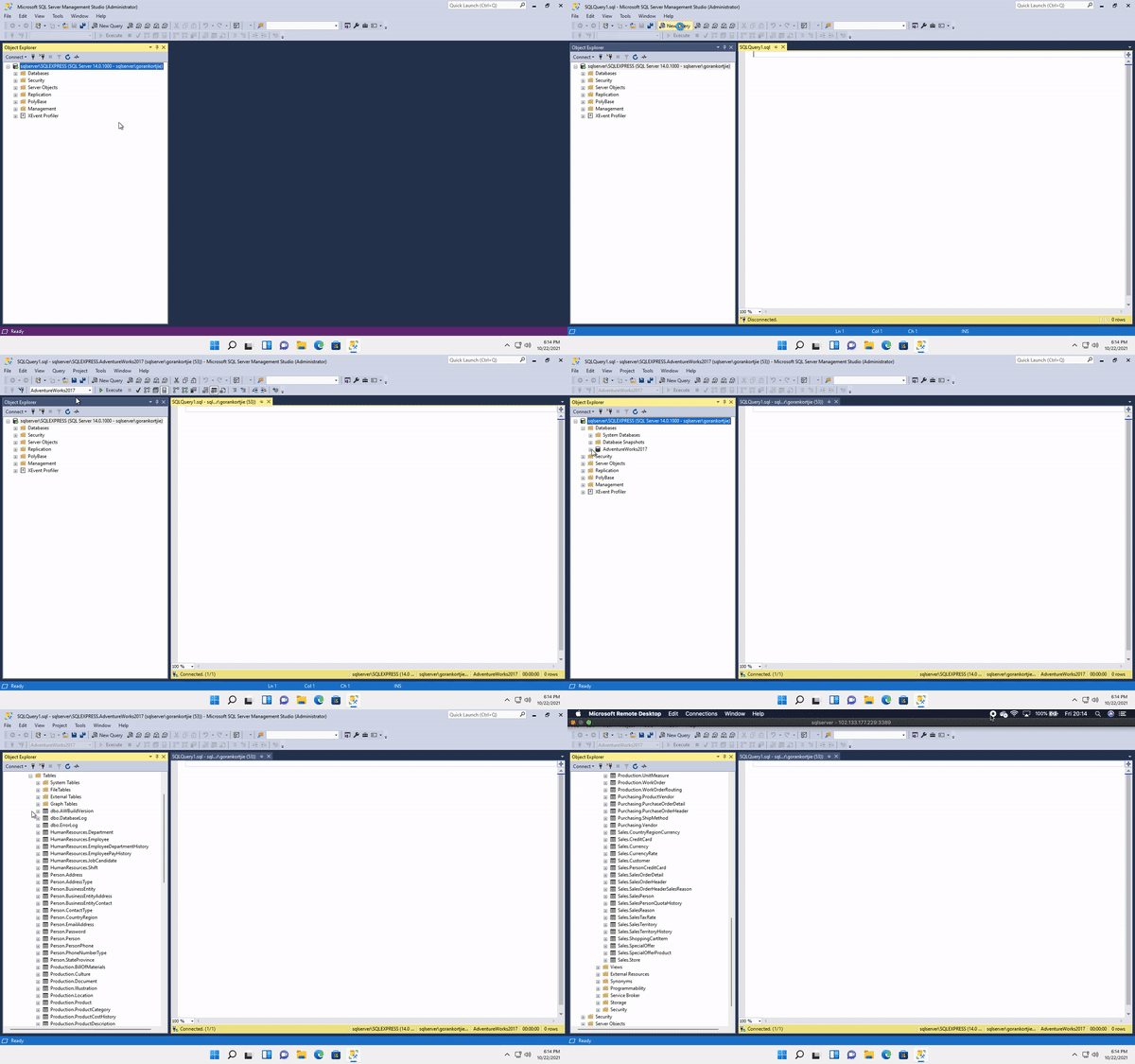
As we can see the tables have a _schemaName_ which prefixes the actually table name. This lets us know who this table belongs to. When we query a table we need to specify the entire name, including the _schemaName_.

When you are the owner of a table, which is the case with any table that has the _schemaName_ as **db0**, we do not need to specify the _schemaName_ along with the table name.
>Although we can refer to it with the schemaName as this works as well.
Let's start selecting and pulling data from the **Person.Person** table.
This table has the information of every single person whether it is a customer or an employee. We need to click on **plus sign** on the left of the Person.Person table to see which columns are available. _**Person.Person**_>_**Columns**_. Inside the Columns structure we will see all the columns.

#### Select a single column
Lets say for instance we want to pull the _**first name**_ of every single person in this table. We type our query using the correct syntax and when complete, we hit the _Execute button_.
```
Select firstname
From Person.Person
```
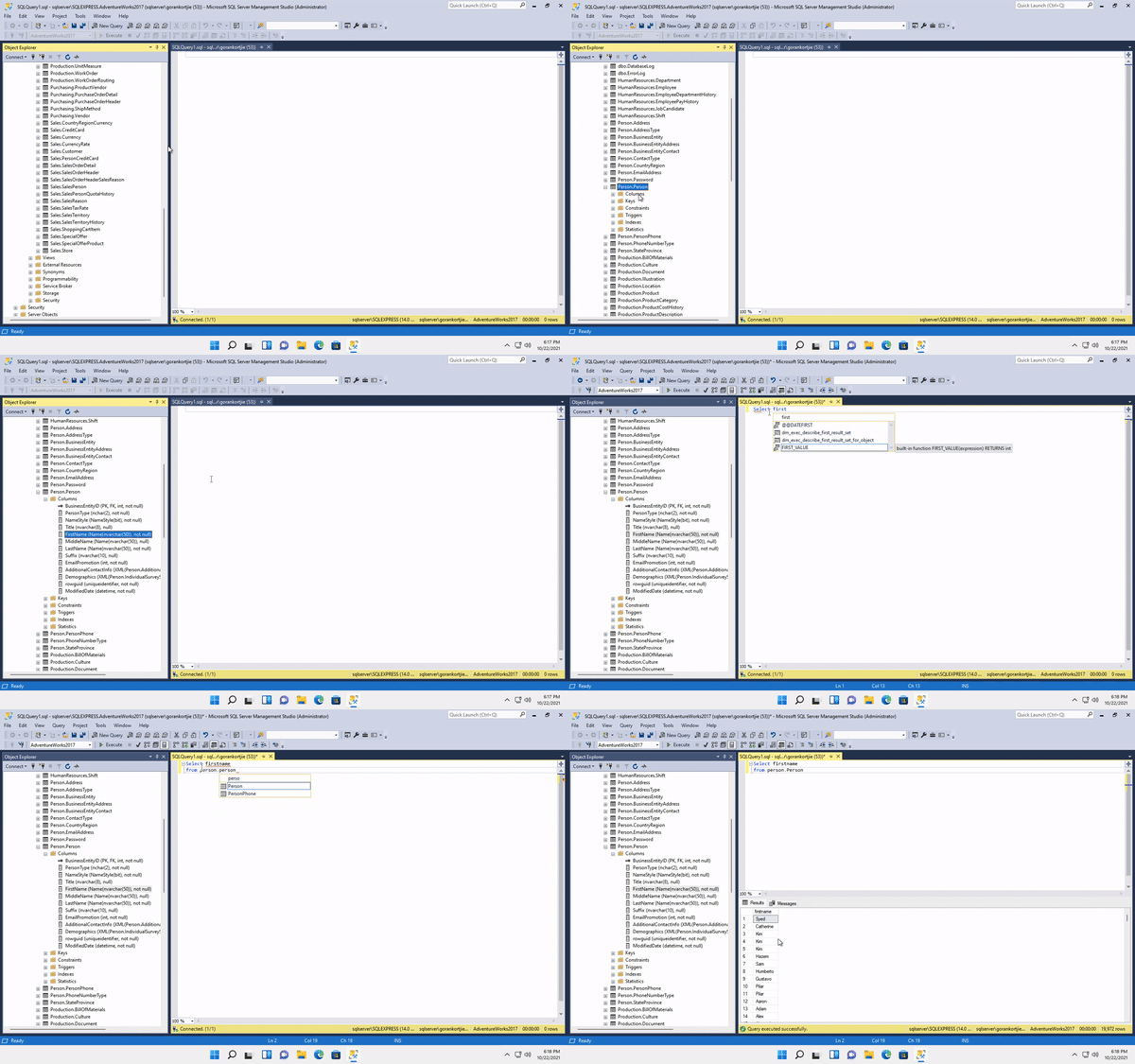
Notice how intuitive SSMS is, it can detect which tables and columns are available to choose from and present them to us for quick access.
>All the statement we write in SSMS are case insensitive.

#### Selecting multiple columns
Let’s select multiple columns from the Person.Person table. We want to pull the **firstName**, **middleName** and **lastName** from the **Person.Person** table. To do this we separate the columns by a comma.
_**Also the spacing between commas do not matter.**_ But for readability keep everything consistent.
```
Select firstname, middleName, lastName
From Person.Person
```
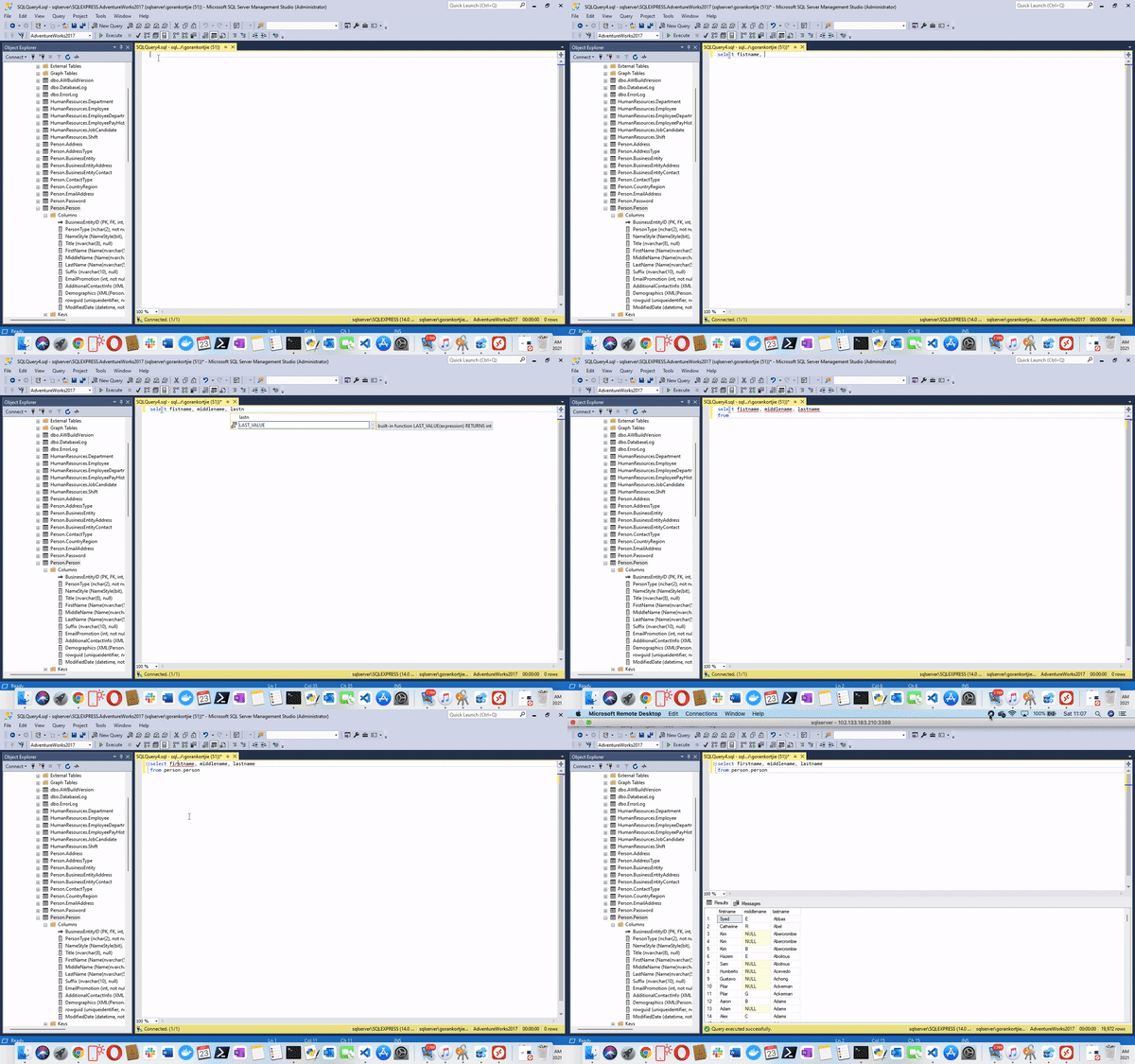
>SSMS not only shows us the columns available in an intuitive way but it also shows us any _**functions**_ that are available to us in SSMS.

#### Select all columns
Now let’s select all the columns in the **Person.Person** table.
If you want to keep your current query statement, then we can leave it as is. We can hit the _New Query_ button and a new window will open, where we can write our new query statement. Also our previous statement will still be accessible by jumping between windows.
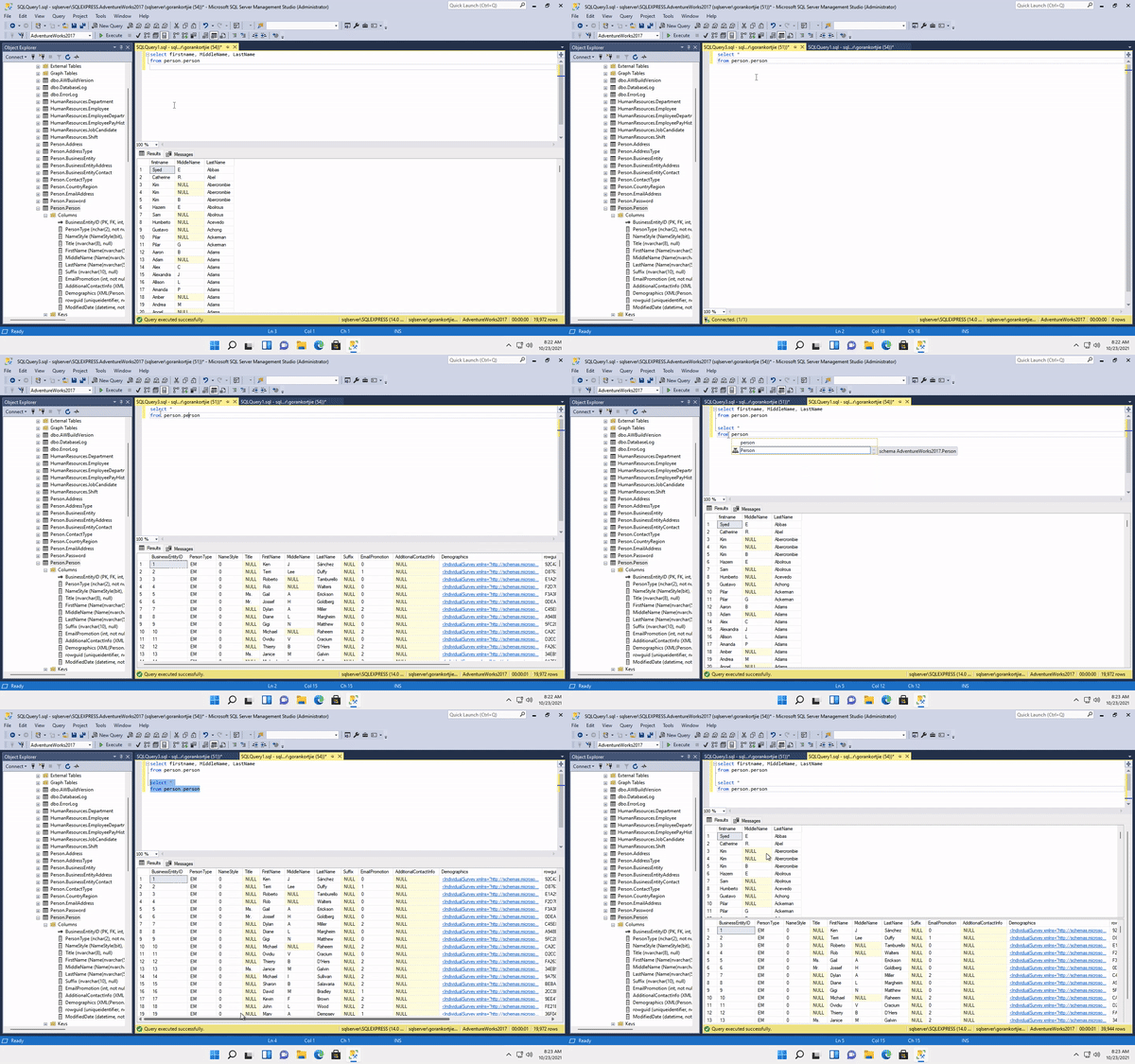
We can also write the new query statement below our current query statement, if we hit _Execute_ after writing the new query we will get the results from both queries. But if we only highlight our new query and hit _Execute_, only that query statement will be executed, the same applies to the query above.

We can also save our queries, which allows us to use them at a later stage. We have to hit the _SAVE_ icon, then we can name it and click _save_. Notice that only the query statements of the active window was saved, not the other window.
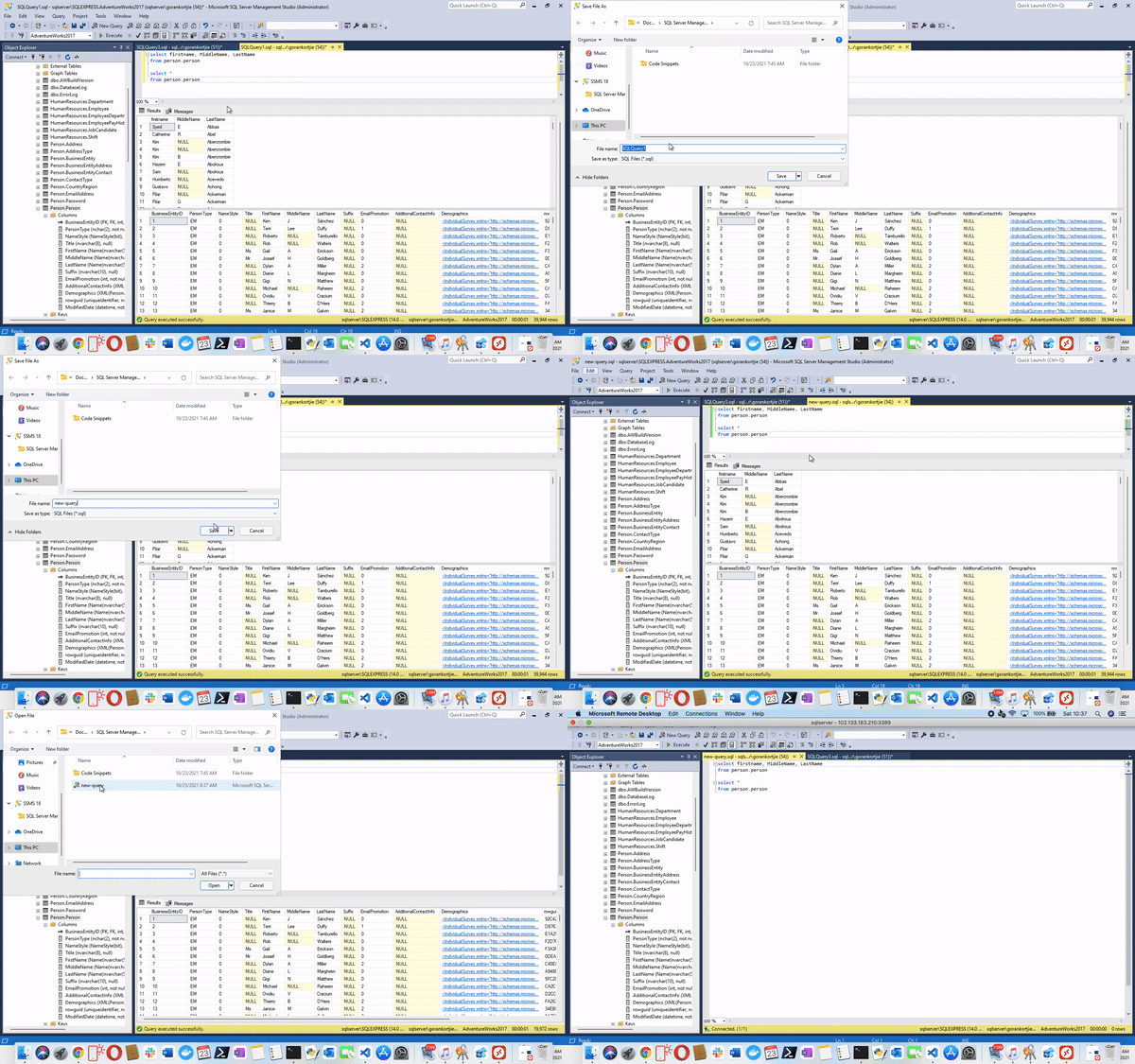
We can use the saved query by navigating at the top-left to _**file**_>_**open**_>_**file**_ or by using the **ctrl + o** key combination. Select our saved query and hit _Open_. Notice that only the query was saved and not the result set.

#### Selecting a specified number of records from a table
When we have a large database, there are millions of records in our table. Then it's not feasible to select all the records from the table, if all we want to do is to just have a simple set.
We are going to discuss the queries we can use to select only a specified number of records from a table.
There are two ways to specify the number of records we want to pull from a table.
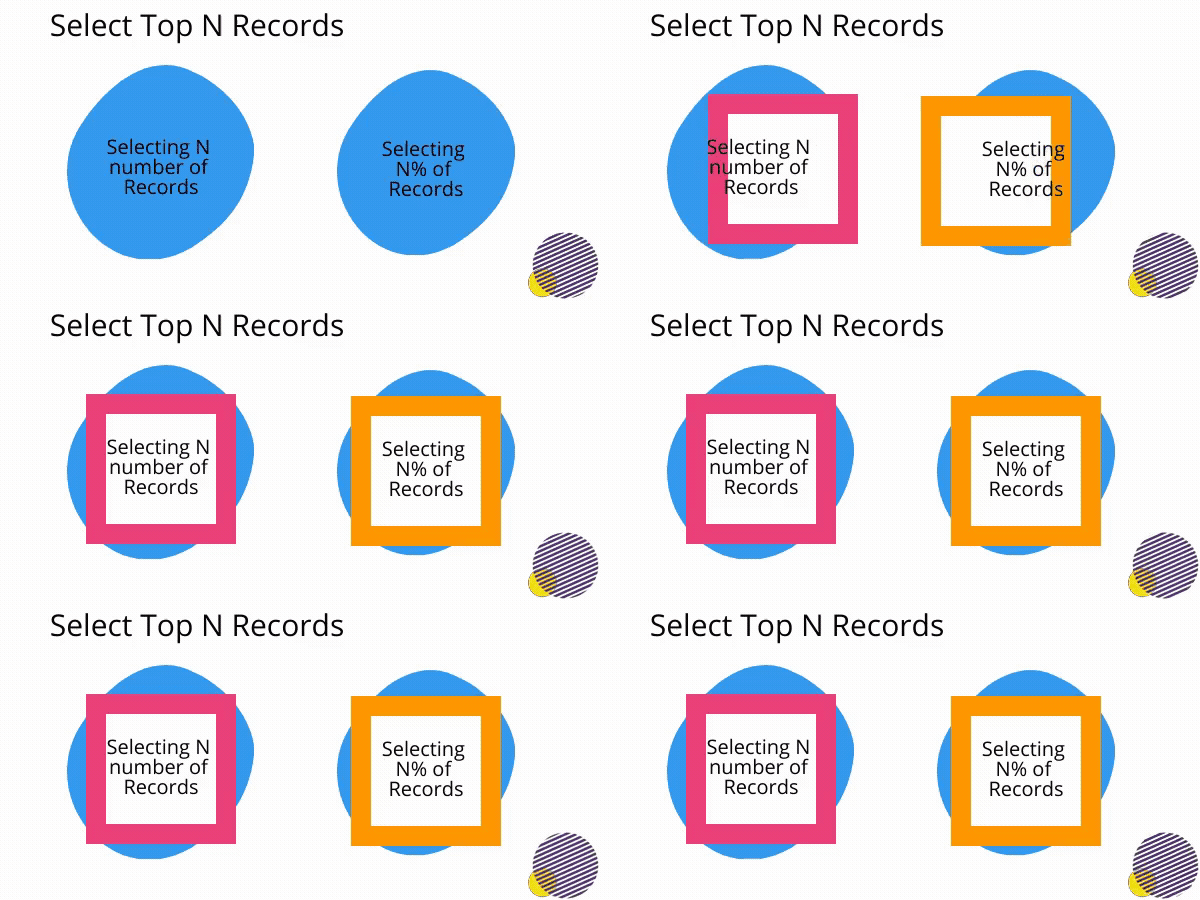
We can specify the number of records we want to pull, for example 150 or 800 records. We can also specify the percentage of records we want to pull, for example 30% or 5%.
We are going to experiment with how you can limit the number of records we can pull from a table by using both types of criteria.

#### Select N number of records
We use the following syntax to query a table for the TOP N number of records:
```
Select top N [Column Names or *]
From [Table Name]
```
_**N**_ is the number of records we want to pull and _Column Names_ are the columns we want to select, we can choose as many columns as we prefer or specify the _asterisk_ * symbol to select all columns.
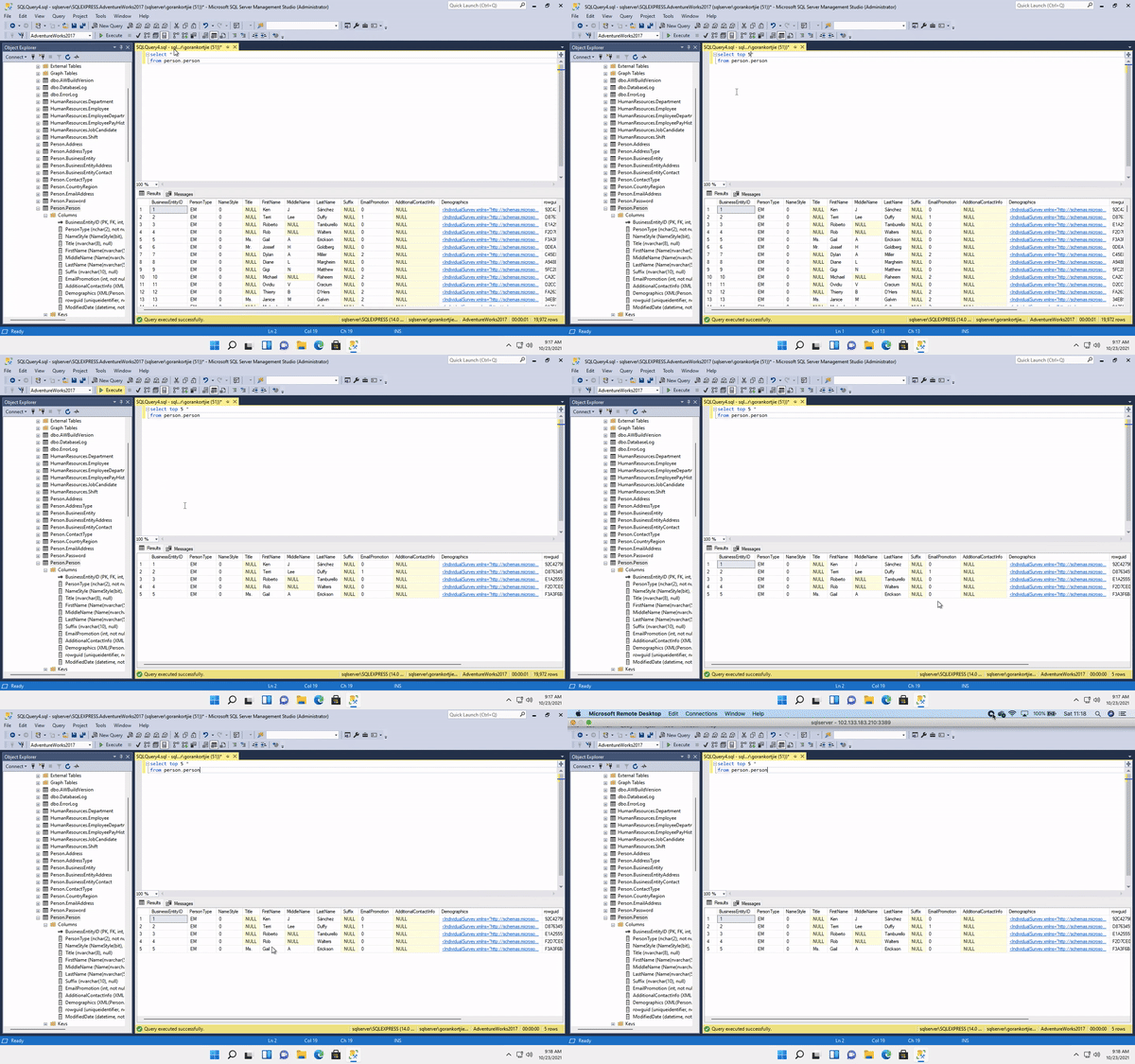
After that we specify the __table__ we want to pull the records __from__.

#### Selecting N% of records
We use the following syntax to query a table for the TOP N Percentage of records:
```
Select top N Percent [Column Names or *]
From [Table Name]
```
_**N**_ is the number and then Percent of records we want to pull. _Column Names_ are the columns we want to select, we can choose as many columns as we prefer or specify the _asterisk_ * symbol to select all columns.
_For example:_
```
Select top 5 Percent [Column Names or *]
From [Table Name]
```

After that we specify the __table__ we want to pull the records __from__.
This is the way we can limit the amount of data we get from the database and make our queries go faster, most of the time for analysis, this might be all we require.
It could be we only want to see the type of data in a table, then we will most likely use the **TOP 2 or TOP 5**. It could be we need to do some analysis, manipulation, experimentation on a few records, then we most likely will use **TOP 2 Percent or TOP 5 Percent** to conduct our analysis.

It is better to get familiar with these commands since they are the most basic and frequently used. Practice and get better acquainted with them. _**Try them on other tables and use different columns**_ 😉
Play around with the AdventureWorks database and soon we will be diving deeper into the world of SQL!